
Petra has been designed so that people can use it without much knowledge of computers. However, it is good to learn to use a computer for simple operations like word-processing before using Petra, so that you know how to use the keyboard and mouse to enter and edit data.
Before you can use Petra, it must be installed on the computer you are using. The 'Release Notes' that come with the Petra software explain how to do this. Alternatively the Petra installation team will install it for you. After installation, Petra must be 'configured' for you before you can use it. This is explained in the System Manager User Guide, and is normally done by the System Administrator. If in doubt, check with the person who is responsible for your computer systems.
Before you can use Petra, you must have your own
User ID
and
Password
. Your System Administrator will normally give these to you, although later on you can change your own password.
After you switch on your computer, you will usually see the general Windows desktop. It will contain several icons
(little pictures or symbols), including the Petra icon, which you can see in the header at the top of this page. To start
Petra, use your mouse to double-click on the Petra icon.
To log on to Petra, take the following steps.
-
Open Petra. To do this, find the Petra icon (or symbol) on the computer screen, point to it with the mouse, and double-click. The programme loads, and after a few seconds, the Petra Login Screen appears:
Figure 5 1 Petra Login Screen
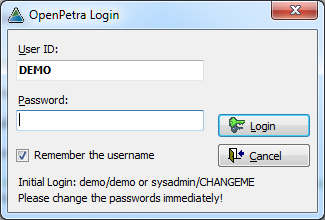
Follow the instructions shown on the screen, as follows.
-
Enter your User ID (your personal User Identification name)
-
Press the <Tab> key on your keyboard. This will move the cursor to the second box, Password .
-
Type your password, being careful to use the correct case of letters. Upper or lower case are different, so if you password is 'APPLES3', and you type 'apples3' you will be rejected. When you type in the box, the letters appear as '*' They are not shown on screen, since otherwise someone else could see your password as you typed it in.
-
Either press the <Enter> key on your keyboard, or point to the OK button with the mouse and click once.
-
If you are successful, you will be logged in to Petra, and the Petra Main Menu Screen will appear (see Figure 52).
If you have made a mistake, you receive a warning message 'Access Denied'. Check the User ID and password and try again. You are allowed three attempts. After this the login screen will be removed, and you have to start again. If you have further problems, consult your System Administrator.
![[Note]](../common/images/admon/note.png) |
Passwords |
|---|---|
|
The System Administrator will give a temporary password to each new user. Each user should change their password, at regular intervals, for security reasons. This is explained in section 5.5, 'Changing Your Password'. |
